Privacyboard

What’s new.

Every new feature and improvement in Privacyboard, month by month.

RSS feed
  1. New
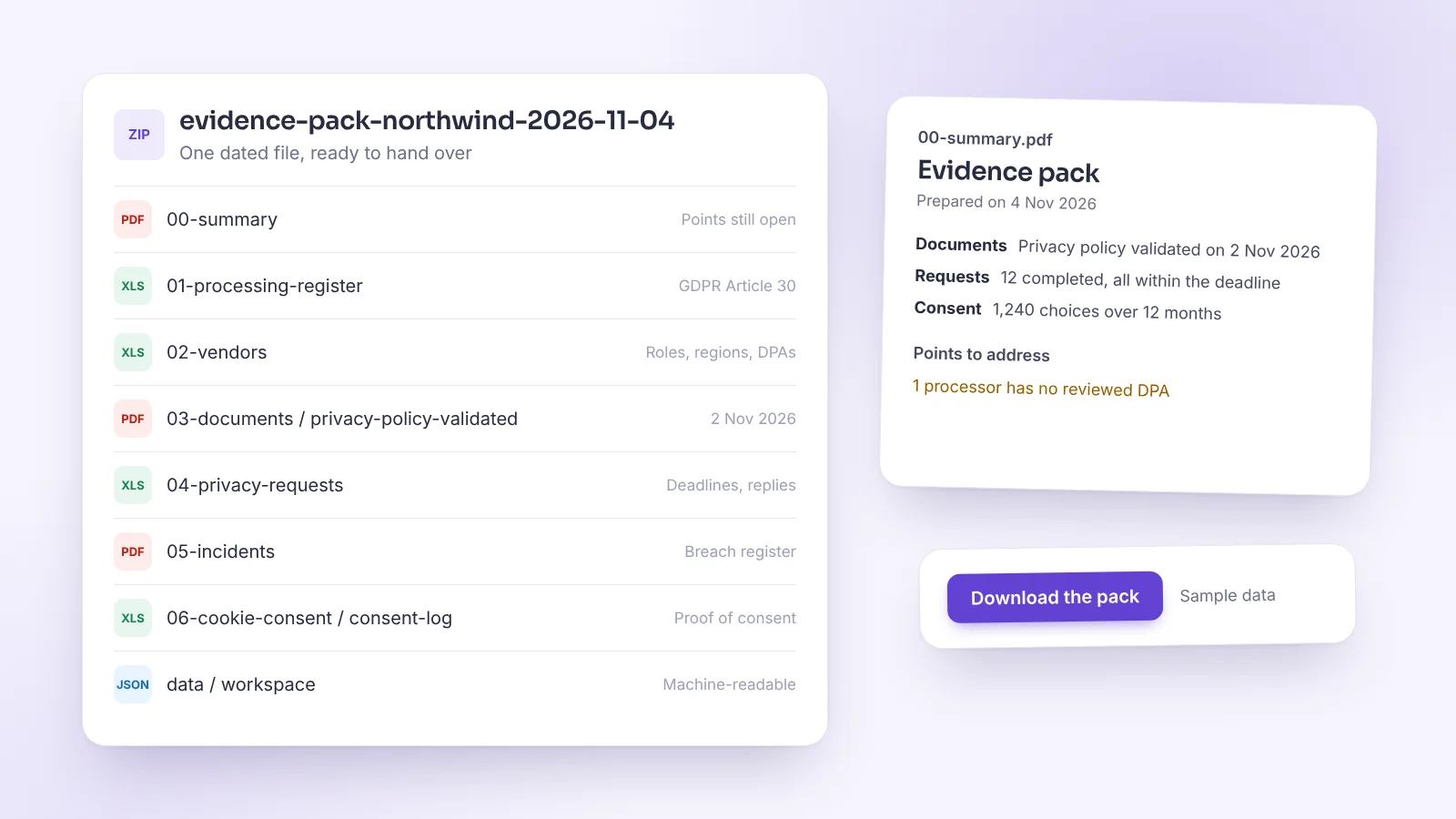
    The files of an evidence pack, from the summary to the consent log, next to its summary page listing validated documents, requests, consent figures and one point to address.

    An evidence pack in one click

    Download one dated file with everything an authority, an auditor or a client's security review asks for, and see what is still open before you send it.

    • On the Business plan, Evidence pack on the Documents page builds a ZIP with a plain-language summary, your register, vendors, validated documents, requests, incidents and cookie consent proofs.
    • The summary lists the points to address first: documents to validate again, vendors to complete, processors without a reviewed agreement, overdue requests.
    • Tables come in PDF to hand over and Excel to work with, plus all your records in machine-readable form.
    Read the documentation →
  2. New
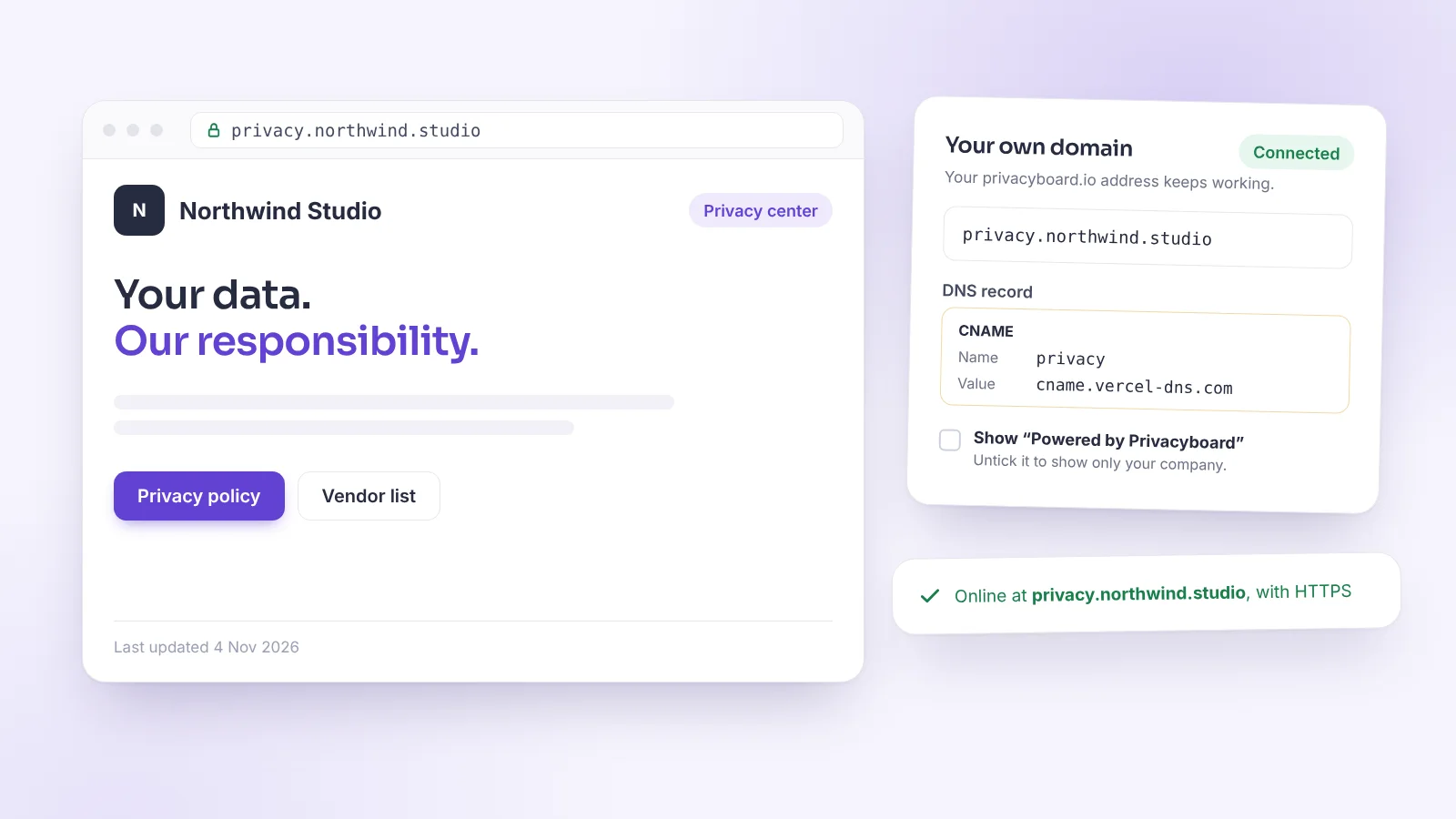
    A privacy center open at privacy.northwind.studio, next to the Your own domain card showing the connected domain, its CNAME record and the Powered by Privacyboard option.

    Your privacy center on your own domain

    Serve your privacy center at an address of your company, like privacy.yourcompany.com, and choose whether to show the Privacyboard mention.

    • Enter your domain under Your own domain in Privacy center, then add the DNS record shown. Each Check again says what it found, and the status turns to Connected once the domain points to us, with HTTPS set up automatically.
    • The card names the company that answers your domain's DNS, so you add the records in the right place even when the domain was bought elsewhere.
    • Your privacyboard.io address keeps working, search engines are pointed to your own domain, and your cookie banner links to the policies at that address.
    • On the Business plan, untick Show “Powered by Privacyboard” to show only your company at the bottom of your public page.
    Read the documentation →
  3. New
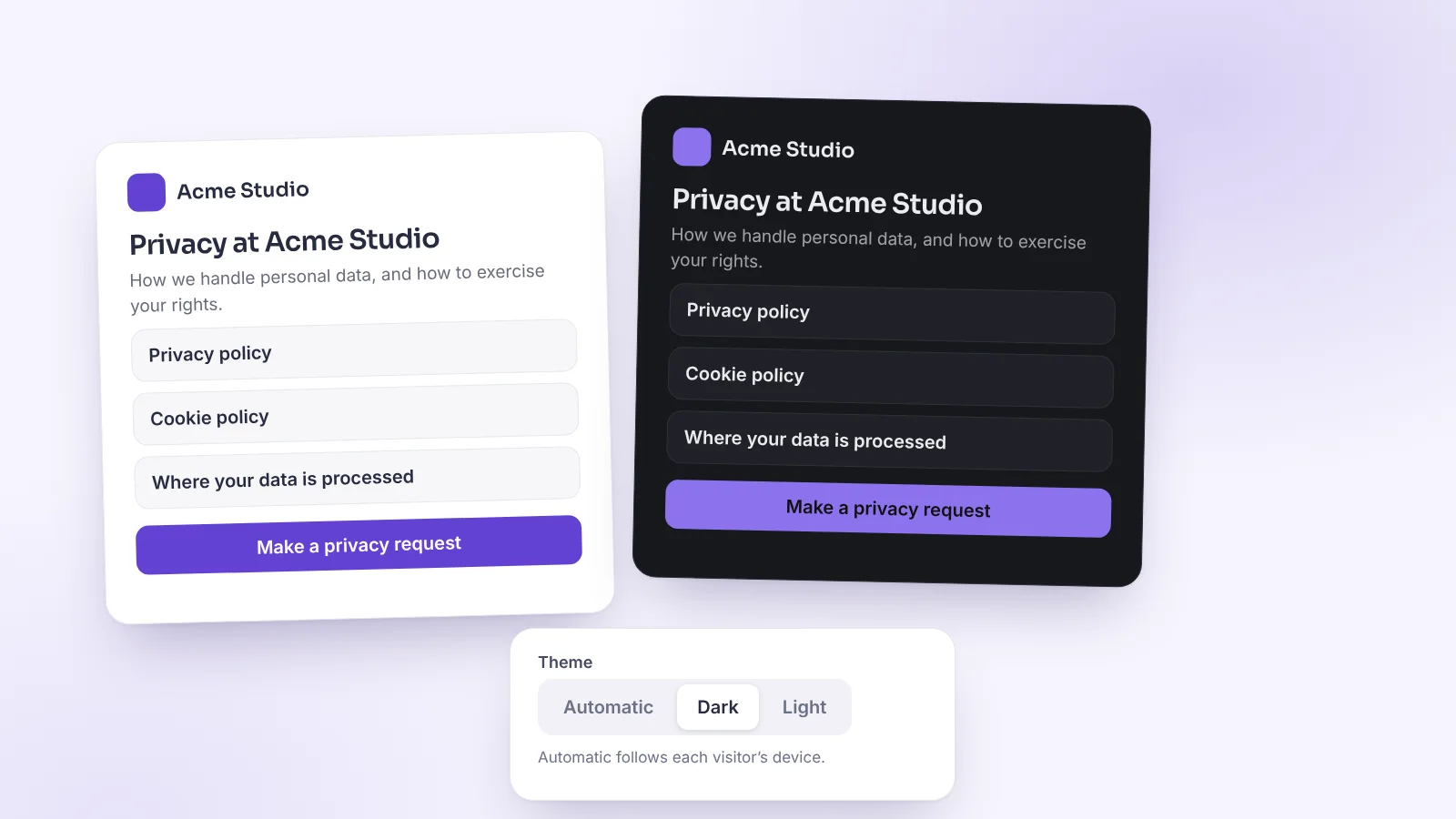
    A privacy center shown in its light and dark themes, with the theme setting offering Automatic, Dark and Light.

    Light, dark or automatic: choose how your privacy center looks

    Your public privacy center now has a theme setting, with a dark palette designed to stay readable.

    • Automatic, the default, follows each visitor’s device. Light and Dark fix the look for everyone.
    • The preview changes at once. Visitors see the new theme when you update your public page.
    • The dark theme uses a neutral graphite palette with careful contrast for text and surfaces.
    Read the documentation →
  4. Improved
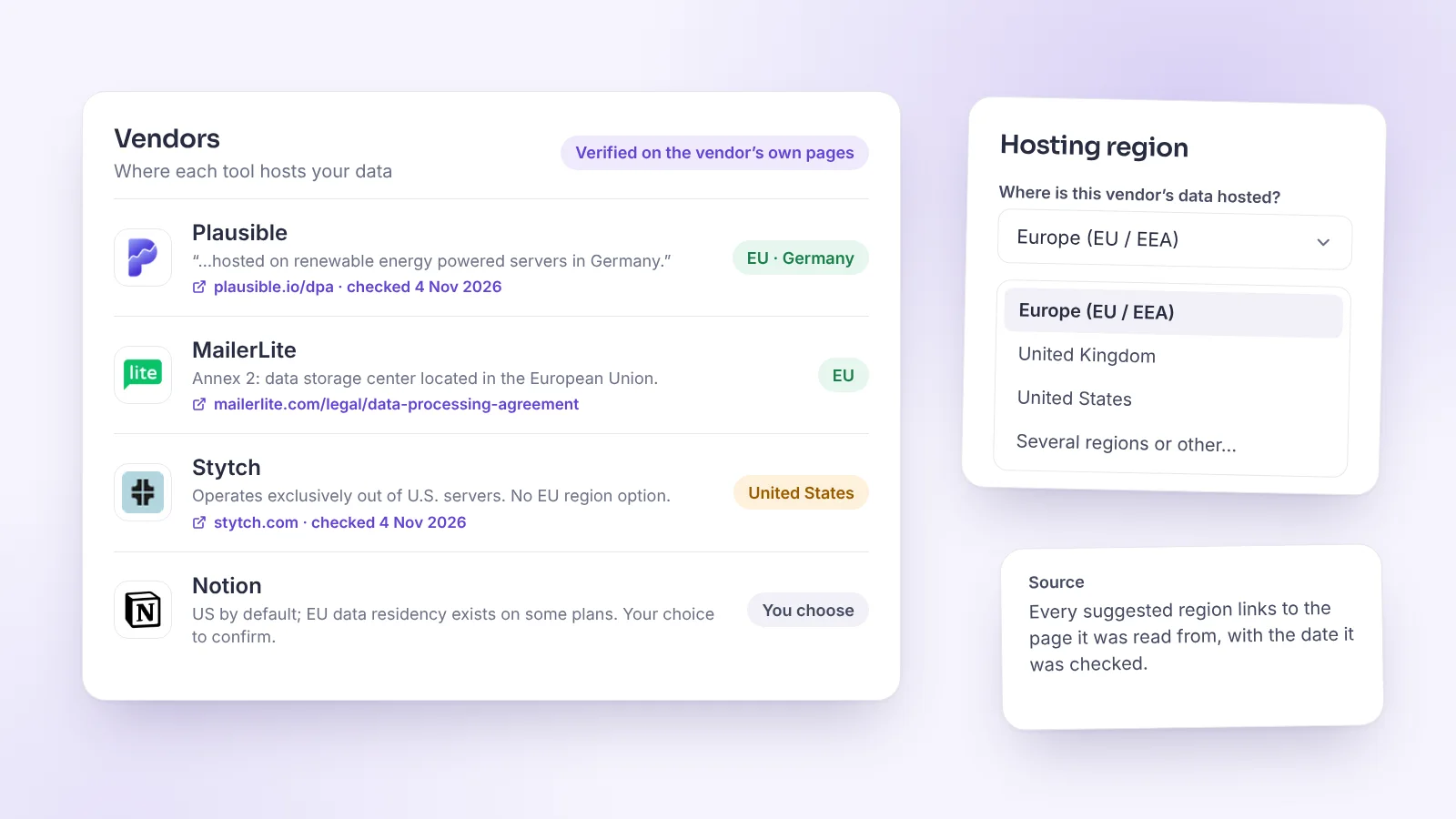
    The vendor list with Plausible, MailerLite, Stytch and Notion, each showing a hosting region, the sentence it comes from and a link to the vendor’s page, next to the region picker.

    Vendor hosting regions, read from the vendors’ own pages

    For many common tools, the hosting region is now suggested from the vendor’s own documents, with the link and the date it was checked.

    • A suggested region comes with the page it was read from and the date it was checked, so you can verify it yourself.
    • When a vendor leaves the choice to you, or its documents do not name a location, we say so and you choose.
    • The region picker is a grouped list that lets you pick several regions or write your own. The same picker is used for your own company’s storage region.
    • Every vendor in the catalog now shows its real logo.
    Read the documentation →
  5. Security
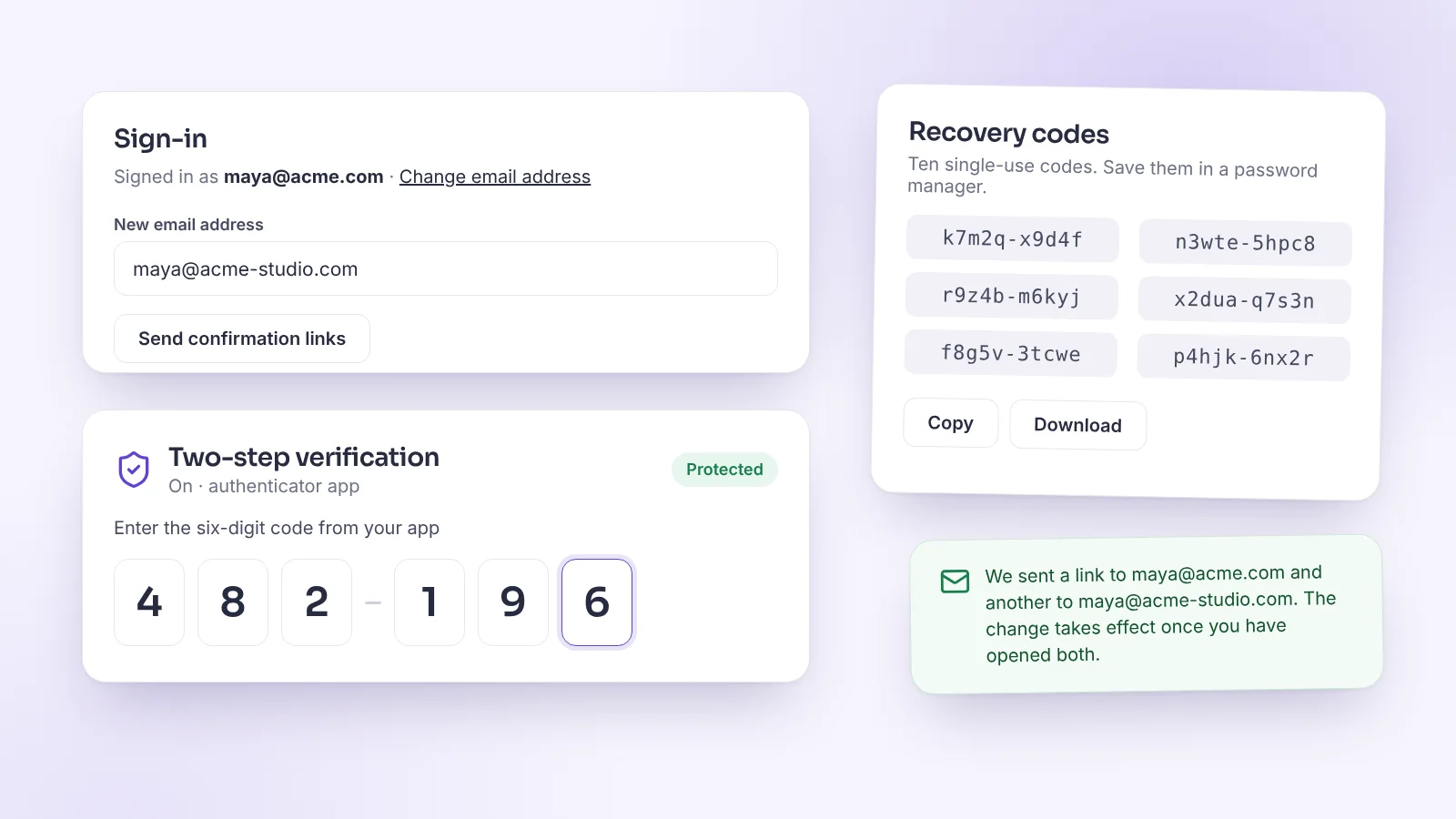
    The sign-in settings of an account, with the change email form, the two-step verification code boxes, ten recovery codes and the confirmation message for an email change.

    Two-step verification and a safer sign-in

    Protect your account with an authenticator app, recovery codes and clearer rules for passwords and email changes.

    • Turn on two-step verification in Settings → My account. Sign-in then asks for a six-digit code from your authenticator app. It is optional, and we suggest it for owners and admins.
    • You get ten single-use recovery codes in case you lose your phone.
    • Change your sign-in email address yourself. We send a confirmation link to the current address and another to the new one, and the change takes effect once both are opened.
    • Passwords need at least 8 characters with letters and digits, and passwords found in known data leaks are refused. Changing a password asks for your current one.
    Read the documentation →
  6. New
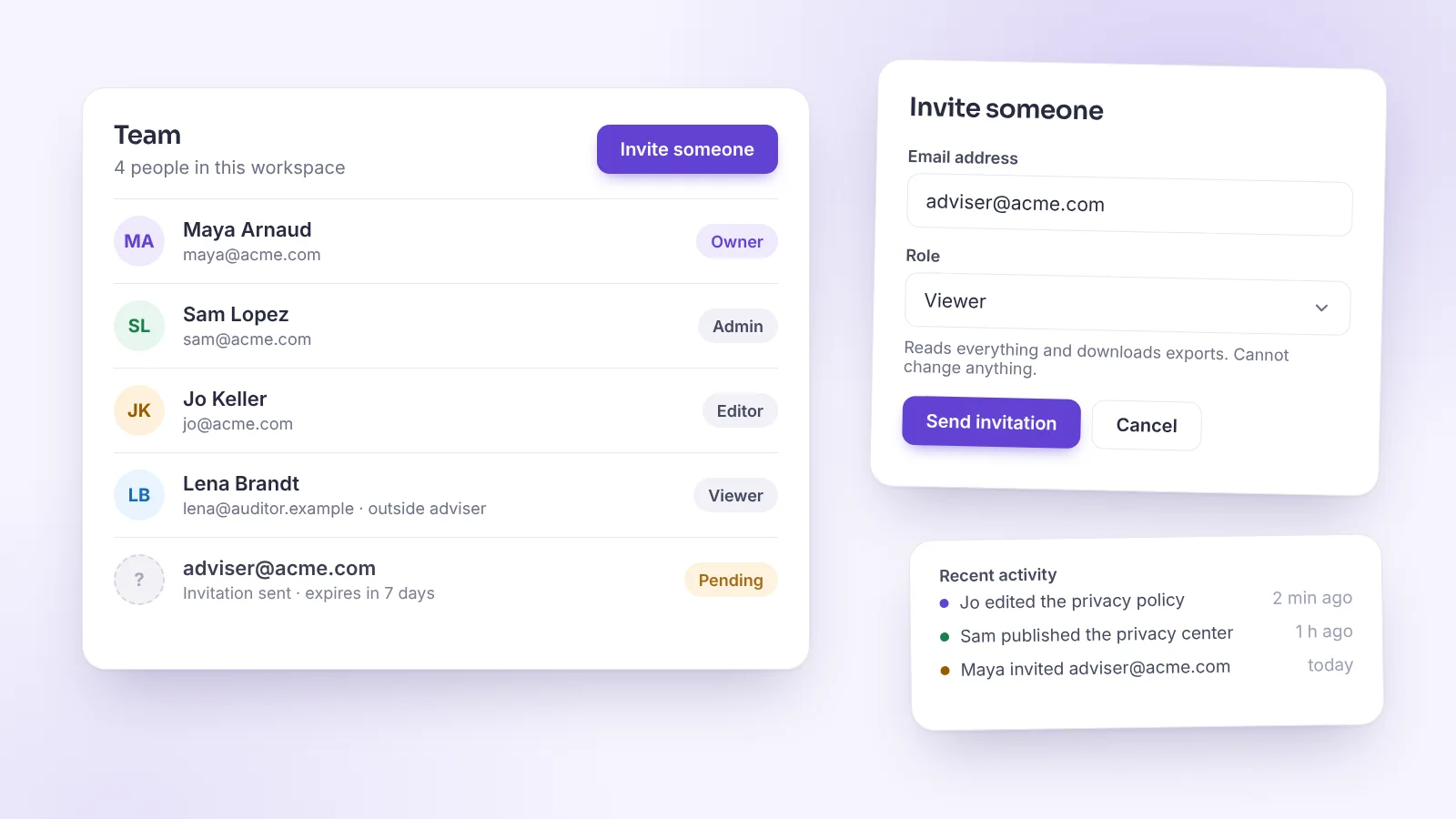
    The Team page of a workspace, listing an owner, an admin, an editor, a viewer and a pending invitation, next to the invitation form and a short activity log.

    Teams: invite colleagues, each with the right role

    Several people can now work in the same workspace, each with their own account and a role: owner, admin, editor or viewer.

    • Invite a colleague or an outside adviser from Settings → Team. The invitation link works once, expires after 7 days and only works for the address it was sent to.
    • Viewers can read everything and download exports, but cannot change anything. This is useful for an auditor or an adviser.
    • Pro includes up to 5 people and Business up to 50: it is one subscription per workspace, not per seat.
    • An activity log shows who changed what, and each member chooses the email alerts they receive.
    Read the documentation →